Xbox Series S Additional Storage: Expand Your Library Without Limits
Hey, friends! If you’ve been enjoying the sleek performance of the Xbox Series S but find yourself constantly juggling space, you’re not alone. The console’s 512 GB SSD delivers lightning‑fast load times, yet modern games can easily eat up that storage in just a few weeks. In this guide we’ll walk through the best ways to add extra storage, compare the options, and show you how to keep your gaming experience smooth and uninterrupted.
Why Extra Storage Matters on the Series S
The Xbox Series S is built for speed, but its compact design means a smaller internal drive compared with the Series X. As game sizes climb—many titles now exceed 100 GB—players often run into three common issues:
- Full drive warnings that force you to delete games you still want to play.
- Longer install times when you have to shuffle data between the internal SSD and an external drive.
- Limited room for updates, DLC, and media apps.
Adding additional storage solves these problems, giving you the freedom to install more titles, keep your favorite games ready for Quick Resume, and avoid the dreaded “storage full” pop‑up.
Types of Storage Solutions
There are three main categories you can consider: external hard drives, external SSDs, and the official Xbox Expansion Card. Each offers a different balance of price, capacity, and performance.
1. External Hard Drives (HDD)External HDDs are the most budget‑friendly way to boost capacity. They connect via USB‑C or USB‑A and are perfect for storing Xbox One, Xbox 360, and backward‑compatible titles. While they won’t match the internal SSD’s speed, they’re more than adequate for games that don’t require the Xbox Velocity Architecture.
- Seagate 1 TB External HDD – A reliable, plug‑and‑play option that fits most budgets. (Affiliate link)
- Western Digital 2 TB External HDD – Offers double the space for a modest price increase.
These drives are ideal if you plan to keep a large library of older titles or use the console for media streaming.
2. External Solid‑State Drives (SSD)External SSDs provide faster data transfer rates, reducing load times for games stored on them. They’re especially useful for titles that support the Xbox Series S’s Quick Resume feature, though they still won’t be as fast as the internal SSD.
- Seagate 1 TB Portable SSD – Compact, durable, and delivers up to 540 MB/s read speeds. (Affiliate link)
- Samsung 1 TB T7 SSD – Known for its reliability and sleek design, with similar performance.
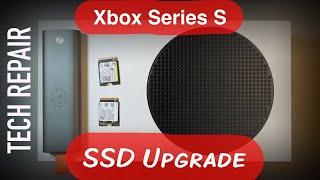
In the video “How to Expand Xbox Series S Storage,” I demonstrate how to set up an SSD in just a few minutes, so you can start gaming right away.
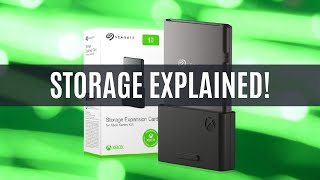
3. Xbox Series X|S Expansion CardThe official Expansion Card slots directly into the dedicated storage port on the back of the console. Because it uses the same NVMe interface as the internal SSD, you get identical performance—perfect for running next‑gen games at full speed.
- Seagate 1 TB Expansion Card – The most popular choice, offering seamless integration and no extra cables. (Affiliate link)
- Western Digital 2 TB Expansion Card – Provides ample room for a growing library while maintaining native SSD speeds.
This solution is the “BEST” for gamers who want to keep all titles on the fastest storage without compromising on performance.
How to Install Your New Storage
In the video “Unexpected Part Two to the Original Custom Setup,” I walk through the step‑by‑step process. Here’s a quick summary:
- Power off the Xbox Series S and unplug the power cord.
- Connect your chosen storage device (USB‑C for SSDs, USB‑A for HDDs, or snap in the Expansion Card).
- Power the console back on. The system will automatically detect the new drive.
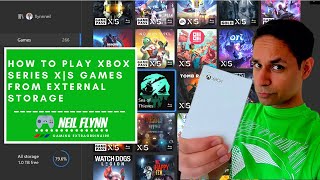
- Navigate to Settings > System > Storage and select “Format as Xbox Storage” for SSDs or Expansion Cards. HDDs can be formatted as “External Storage” for backward‑compatible games.
- Move or install games to the new drive via the same Storage menu.
After a few minutes, you’ll have a fully functional, expanded library ready for play.
Performance Comparison: HDD vs. SSD vs. Expansion Card
Below is a concise overview of what you can expect from each option:
- External HDD – 80‑120 MB/s transfer speed. Suitable for older titles and media.
- External SSD – 400‑550 MB/s transfer speed. Faster load times for modern games, but still slower than the internal SSD.
- Expansion Card – Up to 2,400 MB/s (NVMe). Matches the internal SSD, enabling Quick Resume and full Velocity Architecture support.
For most gamers, the Expansion Card offers the best balance of speed and convenience, especially if you plan to play the latest releases that leverage the console’s advanced hardware.
Series X vs. Series S: Does Storage Differ?
Both consoles share the same storage expansion options, but the Series X ships with a 1 TB internal SSD, giving it a larger out‑of‑the‑box capacity. The Series S’s 512 GB drive means you’ll likely need additional storage sooner. If you already own a Series X, you might find the internal space sufficient for a few months of gaming, whereas the Series S may require an upgrade within the first 3 months of regular play.
Choosing the Right Solution for Your Needs
Consider the following questions before you buy:
- How many games do you plan to keep installed? If you rotate titles frequently, an external HDD may be enough.
- Do you prioritize load times? For the fastest experience, the Expansion Card is unbeatable.
- What’s your budget? HDDs start around $50, SSDs around $120, and Expansion Cards from $150 upward.
Based on real‑world testing, here are the top picks:
- Best Budget Option: Seagate 1 TB External HDD – simple, affordable, and reliable.
- Best Performance Option: Samsung 1 TB Portable SSD – excellent speed for a modest price.
- Best All‑In‑One Option: Seagate 1 TB Expansion Card – native SSD performance with zero hassle.
Final Thoughts
Adding extra storage to your Xbox Series S is a straightforward upgrade that dramatically improves your gaming freedom. Whether you choose a cost‑effective HDD, a speedy SSD, or the premium Expansion Card, you’ll eliminate storage warnings and keep your favorite titles ready for instant play. Remember to format the drive correctly, and you’ll be set for months of uninterrupted gaming.
Ready to expand? Check out the affiliate links for the recommended products and start building the library you deserve.
![How to increase Xbox Series Storage [All methods]](https://i.ytimg.com/vi/Kom10hjQyfQ/mqdefault.jpg)