How to Use YouTube Mini Player: A Complete Guide
Whether you’re juggling work, studying, or just browsing the web, watching YouTube videos in a full‑screen window can be a distraction. YouTube’s mini player solves that problem by shrinking the video into a small, movable window that stays on top while you explore other pages. This article walks you through everything you need to know – from turning the feature on to troubleshooting common hiccups – so you can watch your favorite content without missing a beat.
What Is the YouTube Mini Player?
The mini player is a built‑in YouTube tool that reduces the video to a compact overlay, typically 200 × 112 pixels, while you continue browsing the site or even other tabs. It works on desktop browsers, the YouTube mobile app, and most modern tablets. Because the player stays pinned to the corner of the screen, you can keep an eye on a tutorial, music video, or news clip while you answer emails, write documents, or browse social media.
Why Use the Mini Player?
- Multitask efficiently – Keep a video running while you work on other tasks.
- Save bandwidth – The mini player uses the same video stream, so you don’t need a separate window.
- Stay in control – Drag the player to any corner, resize it, or pause it without leaving the page.
- Cross‑device consistency – The feature behaves similarly on desktop and mobile, making it easy to adopt.
How to Enable the Mini Player (Desktop)
Before you can use the mini player, you need to make sure it’s enabled in your YouTube settings. Follow these steps:
- Open YouTube and sign in to your Google account.
- Click your profile picture in the top‑right corner.
- Select Settings from the dropdown menu.
- In the left‑hand menu, choose Playback and performance.
- Scroll to the Mini player option and toggle Always use mini player (when available) on.
Once this preference is saved, YouTube will automatically offer the mini player whenever a video can be reduced in size.
How to Turn On the Mini Player While Watching a Video
After enabling the feature, turning it on is a single click away:
- Play any video on YouTube.
- Hover over the video to reveal the control bar.
- Click the Mini player icon – it looks like a small rectangle inside a larger one (usually located next to the “Popout” and “Theater mode” icons).
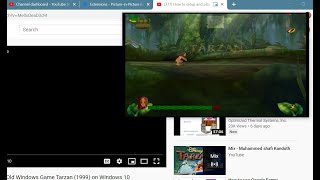
- The video shrinks into a floating window that you can drag to any corner of the screen.
If you don’t see the icon, make sure the video is not in full‑screen mode and that you have enabled the setting described above.
How to Watch Effectively in Mini Player
Once the mini player is active, you have several controls at your fingertips:
- Drag & Drop – Click and hold the player to move it to the left, right, top, or bottom of the screen.
- Resize – Hover over the edges; a double‑arrow cursor appears, allowing you to make the window slightly larger or smaller.
- Pause / Play – Use the standard play/pause button inside the mini player.
- Skip Forward / Backward – The “⏮” and “⏭” buttons work exactly as they do in the full player.
- Close – Click the “X” in the top‑right corner to return the video to its original size or stop playback.
Using the Mini Player on Mobile Devices
The mini player works on Android and iOS YouTube apps, though the activation method differs slightly:
- Start playing a video in the YouTube app.
- Tap the video once to reveal the overlay controls.
- Tap the Mini player icon (usually located in the top‑right corner of the video).
- The video collapses into a small window that you can drag to any side of the screen.
On mobile, you can also swipe down on the mini player to hide it temporarily, then swipe up to bring it back.
Keyboard Shortcuts for Faster Access (Desktop)
If you prefer using the keyboard, these shortcuts speed up the process:
- K or Space – Play/Pause.
- J – Rewind 10 seconds.
- L – Fast‑forward 10 seconds.
- Shift + N – Toggle the mini player (works in most browsers).
Remember that shortcut availability may vary by browser and YouTube’s current UI version.
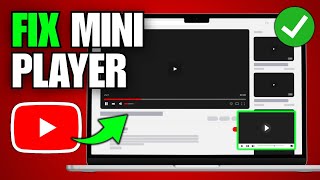
Having Trouble with the Mini Player? Common Fixes
If the mini player doesn’t appear or behaves oddly, try the following solutions:
- Refresh the page – A simple reload often clears temporary glitches.
- Clear browser cache – Old cache files can interfere with new UI elements.
- Update your browser – Ensure you’re using the latest version of Chrome, Firefox, Edge, or Safari.
- Disable conflicting extensions – Ad blockers or video‑download extensions sometimes block UI components.
- Check your internet connection – A weak connection may prevent the mini player from loading.
Security Tip: Keep Your System Protected While Browsing
While watching videos, it’s easy to overlook security. If you’re looking for a reliable way to protect your computer from malware, consider trying Bitdefender Total Security Free Trial. The trial offers real‑time protection, web‑filtering, and a secure VPN, ensuring that your browsing sessions – including YouTube – stay safe.
Conclusion
The YouTube mini player is a simple yet powerful tool that lets you stay productive while enjoying video content. By enabling the feature in your settings, learning the quick‑click method to turn it on, and mastering a few handy shortcuts, you can watch tutorials, music videos, or news clips without interrupting your workflow. If you encounter any issues, the troubleshooting steps above should get you back on track. And remember, a secure browsing environment—such as one provided by Bitdefender—helps you enjoy YouTube without worrying about online threats.
Now that you know how to turn on, enable, and use the YouTube mini player, go ahead and give it a try. Your multitasking game will thank you!


![How to Reduce YouTube Video Screen Size - Quick Tutorial [2025]](https://i.ytimg.com/vi/sXDHcniPIzw/mqdefault.jpg)


