How To Xref In AutoCAD: A Step‑by‑Step Guide
External references, or Xrefs, are essential for managing large drawings in AutoCAD. By linking external files instead of inserting them directly, you keep your layout lightweight, improve collaboration, and simplify updates. This tutorial walks you through the process from attaching a reference to binding, reloading, and detaching it—perfect for beginners and intermediate users.
Why Use Xref?
- File size control: Xrefs keep the host drawing small because the referenced geometry is stored in separate files.
- Version management: Each discipline (architecture, structural, MEP) can work on its own drawing while maintaining a single coordinated model.
- Real‑time updates: When the referenced file changes, you can reload the Xref to reflect those changes without redrawing.
Watch the Video Tutorial
This video shows you the proper way to do an Xref. Follow along with the visual guide at https://www.youtube.com/watch?v=4_NwrUCd1ac&list=PLe_I-JWckL7E8FebG6hpbi5KgrfsxUBIr&index=27 for a clear demonstration of each step.
Step‑by‑Step: Attaching an Xref
- Open the Insert tab. Click Reference Panel and select Attach.
- Use the Select Reference File dialog box. Browse to the file you want to attach. You can select multiple files at once if you need several references.
- Choose attachment options. Set the Reference Type


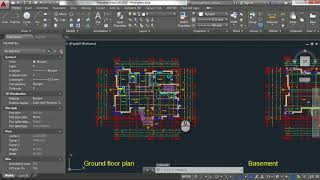

![AutoCAD External Reference (Xref) အကြောင်း [ Part-01 ]](https://i.ytimg.com/vi/vZNSQirUlyw/mqdefault.jpg)


