How To Screenshot In Windows And Save It
Capturing your screen is an essential skill for troubleshooting technical issues, saving important information, or sharing visual content with colleagues. Whether you need to capture your whole screen or just a small portion of it, Windows provides several built-in tools to get the job done without needing third-party software.
Depending on your goal, you may want to save the image directly to a folder or copy it to your clipboard for quick pasting into an email or chat. Here are the most effective ways to screenshot in Windows and save your images.
Using the Snipping Tool (Windows + Shift + S)
The Snipping Tool is the most versatile method for modern Windows users. By pressing Windows Key + Shift + S, you activate the screen snipping overlay, which dims the screen and provides a toolbar at the top.
You have four primary options with this tool:
- Rectangular Snip: Draw a box around the specific area you want to capture.
- Freeform Snip: Draw any shape around an object.
- Window Snip: Select a specific window (like a browser or folder) to capture.
- Full-screen Snip: Capture everything currently visible on your monitor.
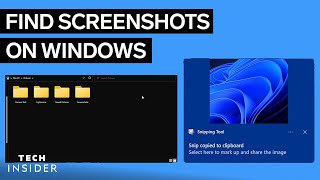
Once the snip is taken, it is automatically saved to your clipboard. A notification will also appear in the bottom-right corner of your screen. Clicking this notification opens the Snipping Tool editor, where you can crop the image, add annotations, and click the Save icon to choose a permanent folder on your hard drive.
Capturing the Full Screen Automatically (Windows + Print Screen)
If you need to capture the entire screen and save it instantly without opening an editor, the Windows Key + Print Screen (PrtSc) shortcut is the fastest method.
When you press this combination, the screen will momentarily dim. Windows automatically saves the image as a PNG file. You can find these files by navigating to:
This PC > Pictures > Screenshots
This method is ideal for those who need to take a rapid series of screenshots without manually naming and saving each file.
Saving to the Clipboard (Print Screen Only)
Pressing the Print Screen (PrtSc) key by itself captures the entire screen and stores it in the system clipboard. Unlike the previous method, this does not create a file on your computer.
To save a clipboard screenshot, you must "paste" it into another application. Common workflows include:
- Press PrtSc.
- Open an app like Paint, Microsoft Word, or an email draft.
- Press Ctrl + V to paste the image.
- Go to File > Save As to save the image to your desired folder.
Using the Xbox Game Bar (Windows + Alt + Print Screen)
While primarily designed for gamers, the Xbox Game Bar is a powerful tool for capturing high-quality images of specific apps or games. By pressing Windows Key + Alt + Print Screen, Windows takes a snapshot of the active window.
These images are saved in a different location than standard screenshots. You can find them here:
This PC > Videos > Captures
This is particularly useful if you are working in a full-screen application and want to avoid capturing the Windows taskbar or start menu.
Summary of Windows Screenshot Methods
To help you choose the right method, refer to this quick guide based on your specific needs:
- For a specific area: Use Windows + Shift + S.