How To Print Screen In Windows HP
Whether you are documenting a technical error, saving a receipt, or sharing a funny moment from a video call, knowing how to take a screenshot on your HP laptop or desktop is an essential skill. Because HP devices run on Windows, there are several built-in methods to capture your screen without needing to install third-party software.
Depending on your specific HP model and the version of Windows you are using, your keyboard layout may vary. Some laptops have a dedicated PrtSc key, while others require a combination of keys to trigger the function.
Method 1: Using the Print Screen (PrtSc) Key
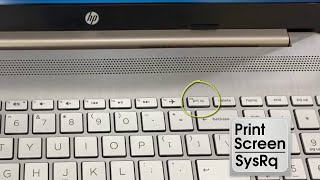
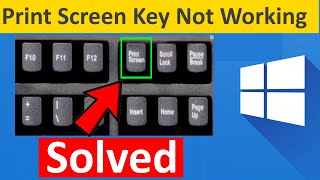
The fastest way to capture your entire screen is by using the Print Screen key. On most HP keyboards, this is labeled as PrtSc, Print Scr, or Prt Scrn.
- Full Screen Capture: Press the PrtSc key once. This copies the entire screen to your clipboard. You will not see a file saved immediately; you must paste the image into a program like Paint, Word, or an email using Ctrl + V.
- Saving Directly to a File: Press the Windows Key + PrtSc. Your screen will dim for a moment, indicating the capture was successful. Windows automatically saves this image as a PNG file in the Pictures > Screenshots folder.
- Using the Function Key: On some HP laptops, the PrtSc key is shared with another command. If pressing PrtSc alone doesn't work, try pressing Fn + PrtSc.
Method 2: Capturing a Specific Window (Alt + PrtSc)
If you do not want to capture your entire desktop—including the taskbar and open background apps—you can capture only the active window.
- Click on the window you wish to capture to make it active.
- Press Alt + PrtSc.
- The image of only that specific window is now copied to your clipboard.
- Paste it into your desired application using Ctrl + V.
Method 3: Using the Snipping Tool and Snip & Sketch
For those who need more precision, Windows provides the Snipping Tool (or Snip & Sketch in Windows 10 and 11). This is the best method if you only need a small portion of the screen.
The most efficient way to launch this tool is by using the keyboard shortcut: Windows Key + Shift + S.
Once you press these keys, the screen will grey out, and a small menu will appear at the top of your screen offering four options:
- Rectangular Snip: Draw a box around the area you want to capture.
- Freeform Snip: Draw any shape around an object.
- Window Snip: Select a specific window to capture.
- Full-screen Snip: Capture the entire display.
After selecting your area, the screenshot is saved to your clipboard and a notification appears. Clicking that notification allows you to edit, annotate, and save the image as a JPG or PNG file.
Method 4: Using the Game Bar for Video and Stills
If you are gaming or using a full-screen application, the Xbox Game Bar is a powerful built-in utility for HP Windows users.
Press Windows Key + G to open the Game Bar overlay. From here, you can click the camera icon in the "Capture" widget to take a screenshot. These images are typically saved in the Videos > Captures folder.
Quick Troubleshooting for HP Users
If you find that your print screen shortcuts are not