How To Logout Netflix On TV: A Complete Guide
Whether you are selling your smart TV, giving it away, or simply need to switch accounts to share a profile with a family member, knowing how to sign out of Netflix is essential. While the process is generally straightforward, the interface can vary slightly depending on the device you are using.
Many users find themselves unable to locate the sign-out button because it is often tucked away in sub-menus. This tutorial shows you the most efficient ways to remove your account from your television to ensure your viewing history and payment information remain secure.
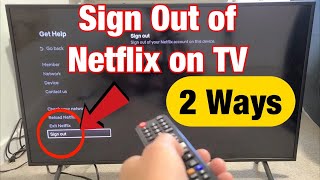
Method 1: Using the Netflix On-Screen Menu
The most common way to logout is by using the built-in navigation menu on your TV. This method works for most Smart TVs, including Samsung, LG, and Sony, as well as streaming devices like Roku or Apple TV.
Step-by-Step Instructions
- Open the Netflix App: Launch the application from your TV's home screen.
- Navigate to the Left: Use your remote to move the cursor to the left side of the screen to open the main menu.
- Select 'Get Help': Scroll down to the bottom of the sidebar and select the Get Help option.
- Choose 'Sign Out': Within the Get Help menu, you will find the option to Sign Out. Select it and confirm your choice when the prompt appears.
If you cannot find the "Get Help" section, you can also try navigating to the Account section within the main menu, where the sign-out option is frequently located on newer versions of the app.
Method 2: The "Konami Code" Reset (For Hidden Menus)
Sometimes, the app may freeze, or the menu options might be missing. In these cases, there is a hidden sequence of buttons—similar to a cheat code—that forces the Netflix app into a diagnostic menu where you can sign out manually.
How to Use the Remote Sequence
Using the directional arrows on your TV remote, press the following buttons in this exact order:
- Up, Up, Down, Down, Left, Right, Left, Right, Up, Up, Up, Up
Once entered, a hidden menu will appear on your screen. From here, you can select Sign Out or Reset. This is particularly useful if you are unable to access the standard settings menu due to a software glitch.
How to Sign Out of Netflix Remotely
What happens if you have already left the house or sold the TV without logging out? You do not need physical access to the device to protect your account. You can sign out of all devices simultaneously using a web browser.
Steps to Remote Logout
- Log into your Netflix account on a computer or mobile browser.
- Go to the Account page.
- Under the Security & Privacy section, select Sign out of all devices.
- Confirm the action.
Note: This will log you out of every single device currently using your account, including phones, tablets, and other TVs. You will need to sign back in on the devices you still use.
Why You Should Regularly Sign Out of Shared TVs
Maintaining account security is vital. When you leave your account signed in on a TV that isn't in your primary residence, you risk several issues:
- Algorithm Distortion: Other users may watch genres you dislike, ruining your personalized recommendations.
- Profile Misuse: Someone else could accidentally change your account settings or password.
- Device Limits: Netflix has limits on how many screens can stream simultaneously. An active session on a remote TV could prevent you from watching your






![How to Sign Out Netflix Samsung Smart TV [Log Out]](https://i.ytimg.com/vi/ZmO5ydR6KfE/mqdefault.jpg)