How To Log Out Google Account: A Complete Guide for All Devices
Whether you are using a public computer, sharing a tablet with family, or simply switching profiles for work and personal use, knowing how to log out of your Google account is essential for maintaining digital privacy. Because Google integrates your identity across Gmail, YouTube, Drive, and Maps, signing out typically removes your access across all these interconnected services.
Depending on the device you are using, the process varies slightly. This guide provides step-by-step instructions to help you securely sign out on desktops, Android devices, and iOS devices.
How to Sign Out of Google on a Desktop Browser
When using a web browser like Chrome, Firefox, or Safari, your Google account is tied to your browser session. To end this session, follow these steps:
- Open any Google service, such as google.com or gmail.com.
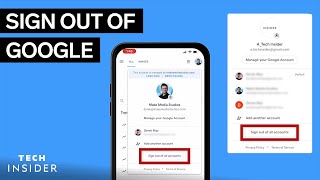
- Locate your profile icon (usually a photo or an initial) in the top-right corner of the page.
- Click on the profile icon to open the account menu.
- Select Sign out. If you are logged into multiple accounts, you will see an option to Sign out of all accounts.
Pro Tip: If you are using a public computer, it is highly recommended to use Incognito Mode (Ctrl+Shift+N in Chrome). This ensures that your session is automatically deleted once you close the browser window, removing the need to manually log out.
How to Log Out of Google on Android
Android devices handle Google accounts differently than browsers. Because the account is synced at the system level to power the Play Store and system backups, there is no simple "sign out" button. Instead, you must remove the account from the device settings.
Here is how you can sign out on Android:
- Open the Settings app on your device.
- Scroll down and tap on Passwords & accounts (on some devices, this may be labeled as Users & accounts or Google).
- Find and tap the specific Google account you wish to remove.
- Select the Remove account button.
- Confirm the action by tapping Remove account again.
Note: Removing an account does not delete your data from Google's servers; it simply disconnects that specific device from your account.
How to Sign Out of Google on iOS (iPhone or iPad)
On Apple devices, you typically access Google through specific apps like Gmail or the Google app. You can either sign out of a specific app or remove the account from the device entirely.
To log out of a Google app on iOS:
- Open the Gmail or Google app.
- Tap your profile picture in the top-right corner.
- Select Manage accounts on this device.
- Tap Remove from this device under the account you want to sign out of.
How to Log Out Remotely from Other Devices
If you forgot to sign out of a computer at a library or a friend's house, you do not need physical access to that machine to secure your data. Google provides a remote sign-out feature through your security settings.
To log out remotely, follow these steps:
- Go to your Google Account settings (myaccount.google.com).
- On the left-hand menu, click Security.
- Scroll down to the Your devices section and select Manage all devices.
- Review the list of devices currently signed into your account.









![How to Logout of Google Account [Mobile & PC] - Full Guide](https://i.ytimg.com/vi/Juph1H9eGww/mqdefault.jpg)
