How to Clear Cache on iPhone: A Complete Guide
Is your iPhone feeling sluggish, or are you constantly getting warnings about low storage? One of the quickest ways to regain speed and free up space is to clear the cache. In this guide, David & David show you exactly how to clear iPhone cache for Safari, individual apps, and even with trusted third‑party tools. Follow the steps below and you’ll have a cleaner, faster device in minutes.
What Is Cache and Why Clear It?
Cache is a temporary storage area that apps and browsers use to keep frequently accessed data—such as images, scripts, and page elements—so they load faster the next time you need them. While this improves performance, the cache can grow over weeks or months and start to consume valuable storage. Clearing the cache does not delete your photos, contacts, or important files; it simply removes temporary data that can be rebuilt when needed.
Find Out How to Free Up Space on Your iPhone: Safari Cache
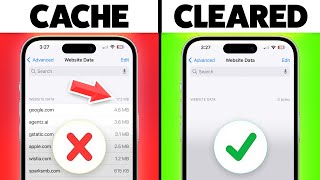
Safari is the default web browser on iPhone, and its cache can become sizable if you browse a lot. Here’s how to clear it:
- Open the Settings app.
- Scroll down and tap Safari.
- Tap Clear History and Website Data.
- Confirm by tapping Clear History and Data in the pop‑up window.
This action removes browsing history, cookies, and all cached website files. After you clear Safari’s cache, you may notice that some sites take a moment longer to load the first time—they’ll rebuild the cache as you browse.
Clear iPhone Cache for Individual Apps
Many apps store their own cache, especially social media, streaming, and gaming apps. While iOS does not provide a universal “clear cache” button, you can achieve the same result by offloading or reinstalling the app.
Here’s a step‑by‑step method:
- Go to Settings > General > iPhone Storage.
- Wait a moment for the list of apps to load, then select the app you want to clean.
- Choose Offload App to remove the app while keeping its documents and data, or tap Delete App to remove everything.
- If you chose “Offload,” reinstall the app from the App Store; the cache will be rebuilt fresh.
For apps that allow in‑app cache clearing (e.g., Instagram, Facebook, TikTok), open the app’s settings and look for options such as “Clear Cache,” “Clear Data,” or “Storage Management.”
How to Clear Cache Using Third‑Party Apps
Several reputable cleaning utilities can help you identify and delete temporary files without the need to reinstall apps. Here are two popular choices:
- CCleaner – Offers a simple “Clean” button that removes Safari cache, app caches, and other junk files.
- PhoneClean – Provides a deeper scan for cached data, large attachments, and unused files, with a one‑tap cleanup option.
When using third‑party tools, always download them from the App Store, read recent reviews, and verify that they do not request unnecessary permissions.
Additional Tips to Keep Your iPhone Running Smoothly
- Restart regularly: A simple reboot clears system memory and can resolve minor glitches.
- Update iOS: New iOS releases often include performance improvements and better storage management.
- Manage photo storage: Enable iCloud Photos with “Optimize iPhone Storage” to keep high‑resolution images in the cloud while storing smaller versions locally.
- Delete old messages: Set messages to auto‑delete after 30 days or 1 year in Settings > Messages.
- Review large attachments: In Settings > General > iPhone Storage, tap “Review Large Attachments” to remove unnecessary videos and PDFs.
When to Use Each Method
Use the Safari method whenever you notice web pages loading outdated content or you receive privacy warnings about cookies. Offloading apps is best for large games or social apps that accumulate megabytes of cache daily. Third‑party cleaners are handy for a quick, all‑in‑one sweep, especially if you prefer a visual overview of what’s taking up space.
Common Questions
Will clearing the cache delete my saved passwords? No. Passwords are stored in the iCloud Keychain, not in the cache. However, clearing Safari data will sign you out of websites, so you may need to log in again.
How often should I clear my iPhone cache? There’s no strict schedule, but a monthly clean‑up or whenever you receive a low‑storage warning is a good rule of thumb.
Can I clear cache without losing app data? Yes. Offloading an app removes the app binary but preserves its documents and settings. Reinstalling restores everything except the cached files.
Conclusion
Clearing cache on your iPhone is a safe, effective way to free up space and boost performance. By following the steps above—starting with Safari, then moving to individual apps, and finally using trusted third‑party cleaners—you can keep your device running smoothly without risking personal data. Remember to combine cache clearing with regular iOS updates and smart storage habits for the best long‑term results.