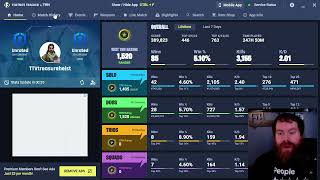
Fortnite Tracker Download for PC: How to Track Your Stats
Whether you are climbing the ranks in competitive play or simply trying to improve your win percentage, monitoring your performance is essential. A Fortnite tracker allows players to analyze their kill-death ratio (KDR), total wins, and match history in real-time. For PC users, accessing these statistics is straightforward, though it requires a few specific settings to be enabled within the game.
What is a Fortnite Tracker?
A Fortnite tracker is a third-party statistical tool that pulls data from Epic Games' servers. Unlike the basic stats shown in the game menu, these trackers provide detailed breakdowns of your performance across different seasons and game modes, such as Battle Royale and Zero Build. By analyzing these trends, players can identify weaknesses in their gameplay and set concrete goals for improvement.
Key Features of Performance Trackers
- Live Stat Tracking: View your current standing and match progress as it happens.
- Career History: Access data from previous chapters to see how your skill has evolved.
- Leaderboards: Compare your statistics against global players or friends.
- Detailed Metrics: Track specific data points like headshot percentage and average damage per match.
How to Enable Public Match Statistics
Before you can use any external tracker on your PC, you must make your account data public. If your profile is set to private, third-party websites and apps cannot access your data to display it.
- Launch Fortnite on your PC.
- Navigate to the Settings menu.
- Go to the Account and Privacy tab.
- Locate the option labeled "Show Public Match Statistics".
- Toggle this setting to On.
- Save your changes and restart the game if necessary.
Note: If you do not enable this setting, your profile will appear as "Private" on any tracking site you visit.
Fortnite Tracker Download for PC: Options and Methods
Many users search for a "Fortnite Tracker download," but it is important to understand that most professional tracking tools are web-based. This means you do not need to download a heavy software package that could potentially interfere with your game files or trigger anti-cheat software.
Using Web-Based Trackers
The most secure way to track your stats is through a browser. Simply visit a reputable tracking site, enter your Epic Games username, and select your platform (PC). This method is recommended because it requires no installation and is updated automatically by the API.
Using Overlay Software
For those who want to see their stats without alt-tabbing, some users utilize overlay software. These tools integrate with your desktop to show live updates. When choosing an overlay, ensure it is a trusted application to avoid security risks or account bans.
How to Get Fortnite Live Stats (Chapter 7 and Beyond)
As Fortnite evolves into new chapters, the way data is tracked can change. To get the most accurate live stats for the current chapter, follow these steps:
- Verify Your Username: Ensure you are using your exact Epic ID, as nicknames can sometimes lead to the wrong profile.
- Refresh Data: Most trackers have a "Refresh" button. Click this after a match to pull the latest data from the server.
- Filter by Mode: Ensure you have selected the correct game mode (e.g., Ranked vs. Casual) to see the specific stats for that category.
Customizing Your Tracking Experience
Once you have accessed your stats, you can customize how you view your data. Many platforms allow you to create a personal dashboard. You can choose which metrics are most important to you, such as focusing on Victory Royales or prioritizing Eliminations.
By